
Описание
Yandex Tracker MCP Server


mcp-name: io.github.aikts/yandex-tracker-mcp
A comprehensive Model Context Protocol (MCP) server that enables AI assistants to interact with Yandex Tracker APIs. This server provides secure, authenticated access to Yandex Tracker issues, queues, comments, worklogs, and search functionality with optional Redis caching for improved performance.
Documentation in Russian is available here / Документация на русском языке доступна здесь.
Features
- Complete Queue Management: List and access all available Yandex Tracker queues with pagination support, tag retrieval, and detailed metadata
- Projects, Portfolios and Goals: Dedicated read and write tools with explicit schemas for each entity type in the Tracker "entities" API (opt-in via
TRACKER_ENTITIES_ENABLED) - User Management: Retrieve user account information, including login details, email addresses, license status, and organizational data
- Full Issue Lifecycle: Create, read, update, and manage issues with support for custom fields, attachments, and workflow transitions
- Status Workflow Management: Execute status transitions, close issues with resolutions, and navigate complex workflows
- Field Management: Access global fields, queue-specific local fields, statuses, issue types, priorities, and resolutions
- Boards and Sprints: List agile boards and their sprints to find sprint IDs for issue planning
- Advanced Query Language: Full Yandex Tracker Query Language support with complex filtering, sorting, and date functions
- Performance Caching: Optional Redis caching layer for improved response times
- Security Controls: Configurable queue access restrictions and secure token handling
- Multiple Transport Options: Support for stdio, SSE (deprecated), and HTTP transports for flexible integration
- OAuth 2.0 Authentication: Dynamic token-based authentication with automatic refresh support as an alternative to static API tokens
- Organization Support: Compatible with both standard and cloud organization IDs
Organization ID Configuration
Choose one of the following based on your Yandex organization type:
- Yandex Cloud Organization: Use
TRACKER_CLOUD_ORG_IDenv var later for Yandex Cloud-managed organizations - Yandex 360 Organization: Use
TRACKER_ORG_IDenv var later for Yandex 360 organizations
You can find your organization ID in the Yandex Tracker URL or organization settings.
MCP Client Configuration
Installing extension in Claude Desktop
Yandex Tracker MCP Server can be one-click installed in Claude Desktop as and extension.
Installation
- Download the
*.mcpbfile from GitHub Releases. - Double-click the downloaded file to install it in Claude Desktop.
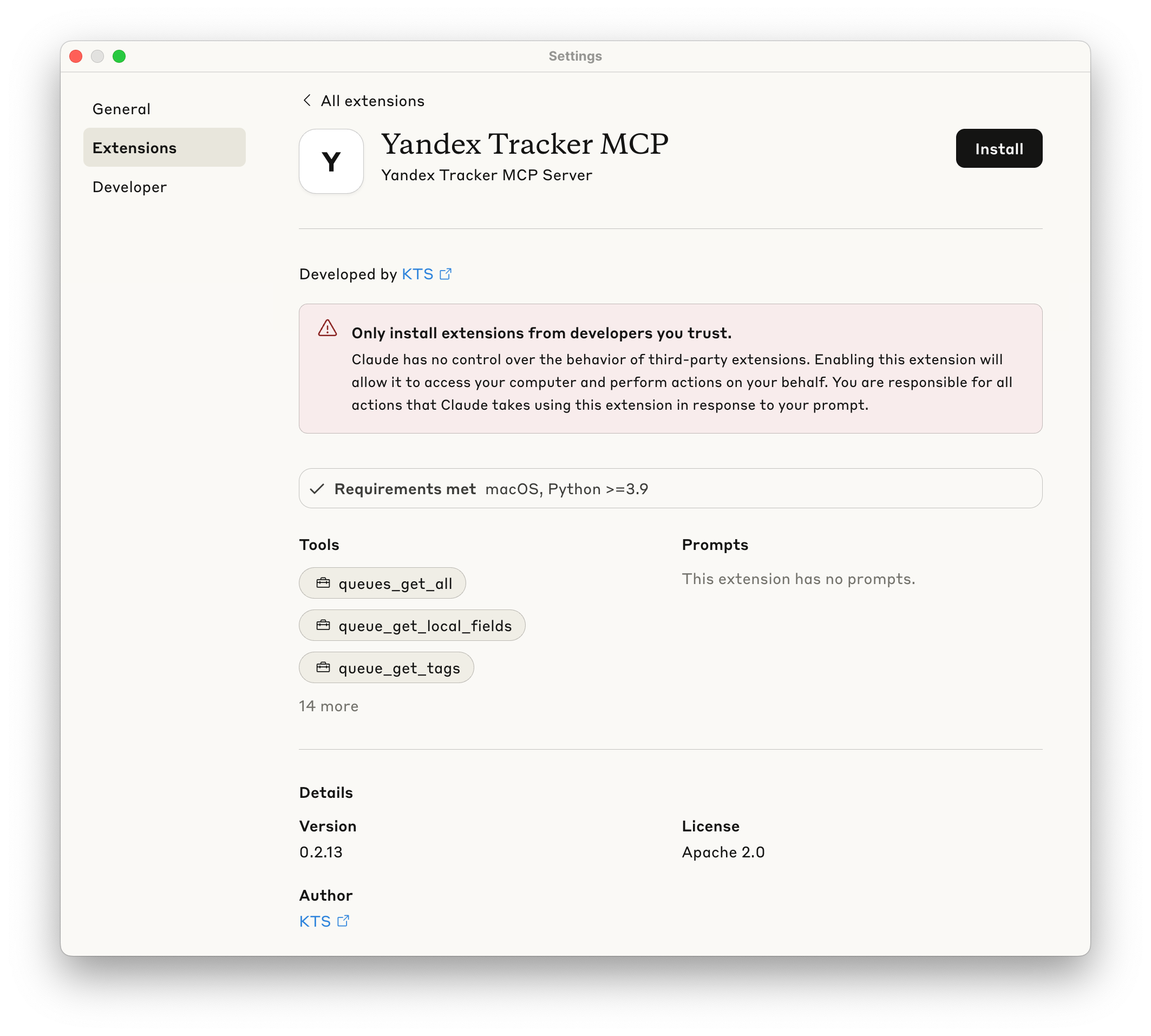
- Provide your Yandex Tracker OAuth token when prompted.
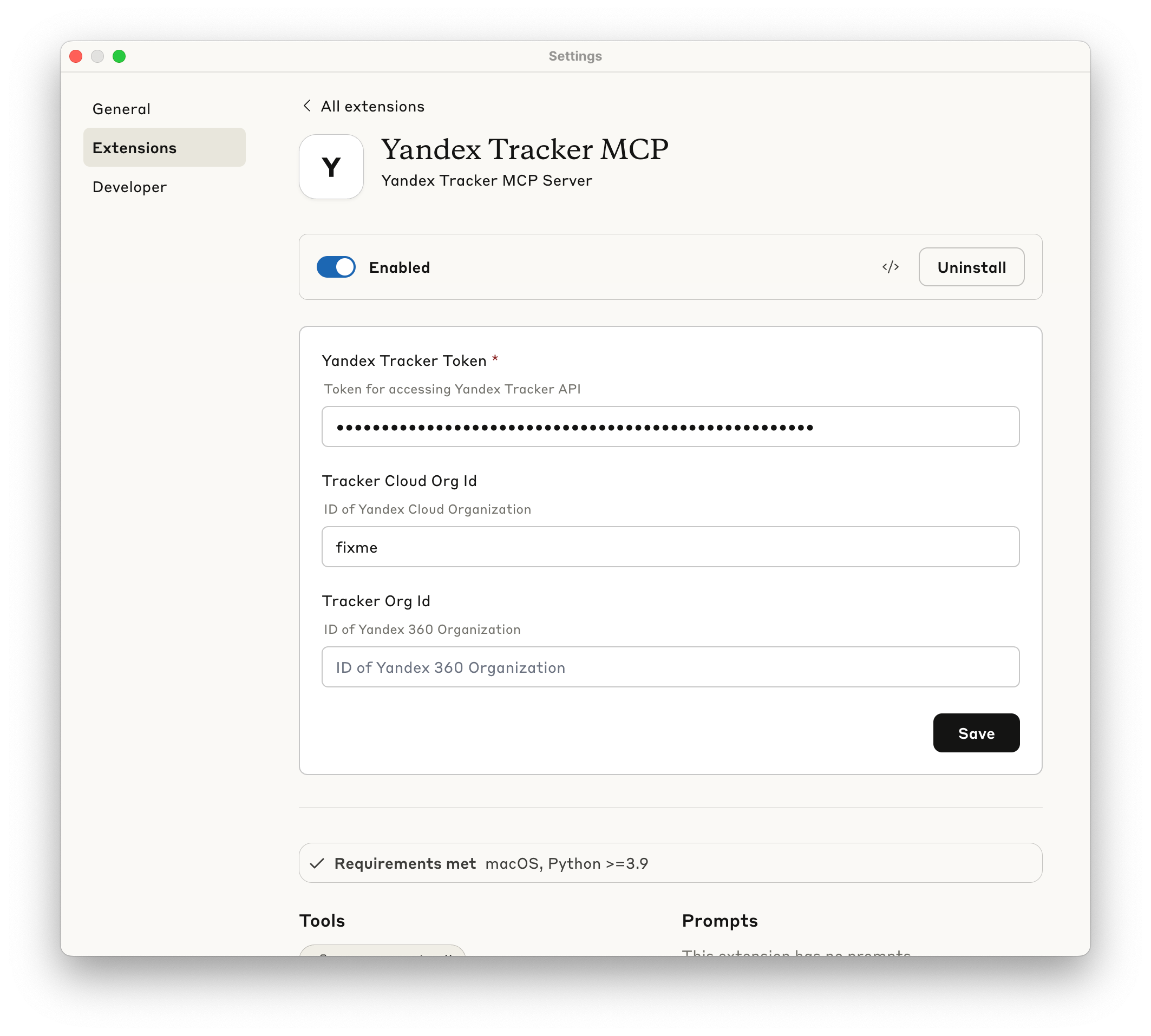
- Make sure extension is enabled - now you may use this MCP Server.
Manual installation
Prerequisites
- uv installed globally
- Valid Yandex Tracker API token with appropriate permissions
The following sections show how to configure the MCP server for different AI clients. You can use either uvx yandex-tracker-mcp@latest or the Docker image ghcr.io/aikts/yandex-tracker-mcp:latest. Both require these environment variables:
- Authentication (one of the following):
TRACKER_TOKEN- Your Yandex Tracker OAuth tokenTRACKER_IAM_TOKEN- Your IAM tokenTRACKER_SA_KEY_ID,TRACKER_SA_SERVICE_ACCOUNT_ID,TRACKER_SA_PRIVATE_KEY- Service account credentials
- Organization - exactly one of the following:
TRACKER_CLOUD_ORG_ID- Your Yandex Cloud organization IDTRACKER_ORG_ID- Your Yandex 360 organization ID
Set one of the two. Setting both makes every Tracker call fail with
Only one of org_id or cloud_org_id should be provided.The examples below useTRACKER_CLOUD_ORG_ID; on Yandex 360, replace that key withTRACKER_ORG_ID.
Claude Desktop
Configuration file path:
- macOS:
~/Library/Application Support/Claude/claude_desktop_config.json - Windows:
%APPDATA%\Claude\claude_desktop_config.json
Using uvx:
{
  "mcpServers": {
    "yandex-tracker": {
      "command": "uvx",
      "args": ["yandex-tracker-mcp@latest"],
      "env": {
        "TRACKER_TOKEN": "your_tracker_token_here",
        "TRACKER_CLOUD_ORG_ID": "your_cloud_org_id_here"
      }
    }
  }
}
Using Docker:
{
  "mcpServers": {
    "yandex-tracker": {
      "command": "docker",
      "args": [
        "run", "--rm", "-i",
        "-e", "TRACKER_TOKEN",
        "-e", "TRACKER_CLOUD_ORG_ID",
        "ghcr.io/aikts/yandex-tracker-mcp:latest"
      ],
      "env": {
        "TRACKER_TOKEN": "your_tracker_token_here",
        "TRACKER_CLOUD_ORG_ID": "your_cloud_org_id_here"
      }
    }
  }
}
Claude Code
Using uvx:
claude mcp add yandex-tracker uvx yandex-tracker-mcp@latest \
  -e TRACKER_TOKEN=your_tracker_token_here \
  -e TRACKER_CLOUD_ORG_ID=your_cloud_org_id_here \
  -e TRANSPORT=stdio
Using Docker:
claude mcp add yandex-tracker docker "run --rm -i -e TRACKER_TOKEN=your_tracker_token_here -e TRACKER_CLOUD_ORG_ID=your_cloud_org_id_here -e TRANSPORT=stdio ghcr.io/aikts/yandex-tracker-mcp:latest"
Cursor
Configuration file path:
- Project-specific:
.cursor/mcp.jsonin your project directory - Global:
~/.cursor/mcp.json
Using uvx:
{
  "mcpServers": {
    "yandex-tracker": {
      "command": "uvx",
      "args": ["yandex-tracker-mcp@latest"],
      "env": {
        "TRACKER_TOKEN": "your_tracker_token_here",
        "TRACKER_CLOUD_ORG_ID": "your_cloud_org_id_here"
      }
    }
  }
}
Using Docker:
{
  "mcpServers": {
    "yandex-tracker": {
      "command": "docker",
      "args": [
        "run", "--rm", "-i",
        "-e", "TRACKER_TOKEN",
        "-e", "TRACKER_CLOUD_ORG_ID",
        "ghcr.io/aikts/yandex-tracker-mcp:latest"
      ],
      "env": {
        "TRACKER_TOKEN": "your_tracker_token_here",
        "TRACKER_CLOUD_ORG_ID": "your_cloud_org_id_here"
      }
    }
  }
}
Windsurf
Configuration file path:
~/.codeium/windsurf/mcp_config.json
Access via: Windsurf Settings → Cascade tab → Model Context Protocol (MCP) Servers → "View raw config"
Using uvx:
{
  "mcpServers": {
    "yandex-tracker": {
      "command": "uvx",
      "args": ["yandex-tracker-mcp@latest"],
      "env": {
        "TRACKER_TOKEN": "your_tracker_token_here",
        "TRACKER_CLOUD_ORG_ID": "your_cloud_org_id_here"
      }
    }
  }
}
Using Docker:
{
  "mcpServers": {
    "yandex-tracker": {
      "command": "docker",
      "args": [
        "run", "--rm", "-i",
        "-e", "TRACKER_TOKEN",
        "-e", "TRACKER_CLOUD_ORG_ID",
        "ghcr.io/aikts/yandex-tracker-mcp:latest"
      ],
      "env": {
        "TRACKER_TOKEN": "your_tracker_token_here",
        "TRACKER_CLOUD_ORG_ID": "your_cloud_org_id_here"
      }
    }
  }
}
Zed
Configuration file path:
~/.config/zed/settings.json
Access via: Cmd+, (macOS) or Ctrl+, (Linux/Windows) or command palette: "zed: open settings"
Note: Requires Zed Preview version for MCP support.
Using uvx:
{
  "context_servers": {
    "yandex-tracker": {
      "source": "custom",
      "command": {
        "path": "uvx",
        "args": ["yandex-tracker-mcp@latest"],
        "env": {
          "TRACKER_TOKEN": "your_tracker_token_here",
          "TRACKER_CLOUD_ORG_ID": "your_cloud_org_id_here"
        }
      }
    }
  }
}
Using Docker:
{
  "context_servers": {
    "yandex-tracker": {
      "source": "custom",
      "command": {
        "path": "docker",
        "args": [
          "run", "--rm", "-i",
          "-e", "TRACKER_TOKEN",
          "-e", "TRACKER_CLOUD_ORG_ID",
          "ghcr.io/aikts/yandex-tracker-mcp:latest"
        ],
        "env": {
          "TRACKER_TOKEN": "your_tracker_token_here",
          "TRACKER_CLOUD_ORG_ID": "your_cloud_org_id_here"
        }
      }
    }
  }
}
GitHub Copilot (VS Code)
Configuration file path:
- Workspace:
.vscode/mcp.jsonin your project directory - Global: VS Code
settings.json
Option 1: Workspace Configuration (Recommended for security)
Create .vscode/mcp.json:
Using uvx:
{
  "inputs": [
    {
      "type": "promptString",
      "id": "tracker-token",
      "description": "Yandex Tracker Token",
      "password": true
    },
    {
      "type": "promptString",
      "id": "cloud-org-id",
      "description": "Yandex Cloud Organization ID"
    }
  ],
  "servers": {
    "yandex-tracker": {
      "type": "stdio",
      "command": "uvx",
      "args": ["yandex-tracker-mcp@latest"],
      "env": {
        "TRACKER_TOKEN": "${input:tracker-token}",
        "TRACKER_CLOUD_ORG_ID": "${input:cloud-org-id}",
        "TRANSPORT": "stdio"
      }
    }
  }
}
Using Docker:
{
  "inputs": [
    {
      "type": "promptString",
      "id": "tracker-token",
      "description": "Yandex Tracker Token",
      "password": true
    },
    {
      "type": "promptString",
      "id": "cloud-org-id",
      "description": "Yandex Cloud Organization ID"
    }
  ],
  "servers": {
    "yandex-tracker": {
      "type": "stdio",
      "command": "docker",
      "args": [
        "run", "--rm", "-i",
        "-e", "TRACKER_TOKEN",
        "-e", "TRACKER_CLOUD_ORG_ID",
        "ghcr.io/aikts/yandex-tracker-mcp:latest"
      ],
      "env": {
        "TRACKER_TOKEN": "${input:tracker-token}",
        "TRACKER_CLOUD_ORG_ID": "${input:cloud-org-id}",
        "TRANSPORT": "stdio"
      }
    }
  }
}
Option 2: Global Configuration
Add to VS Code settings.json:
Using uvx:
{
  "github.copilot.chat.mcp.servers": {
    "yandex-tracker": {
      "type": "stdio",
      "command": "uvx",
      "args": ["yandex-tracker-mcp@latest"],
      "env": {
        "TRACKER_TOKEN": "your_tracker_token_here",
        "TRACKER_CLOUD_ORG_ID": "your_cloud_org_id_here"
      }
    }
  }
}
Using Docker:
{
  "github.copilot.chat.mcp.servers": {
    "yandex-tracker": {
      "type": "stdio",
      "command": "docker",
      "args": [
        "run", "--rm", "-i",
        "-e", "TRACKER_TOKEN",
        "-e", "TRACKER_CLOUD_ORG_ID",
        "ghcr.io/aikts/yandex-tracker-mcp:latest"
      ],
      "env": {
        "TRACKER_TOKEN": "your_tracker_token_here",
        "TRACKER_CLOUD_ORG_ID": "your_cloud_org_id_here"
      }
    }
  }
}
Other MCP-Compatible Clients
For other MCP-compatible clients, use the standard MCP server configuration format:
Using uvx:
{
  "mcpServers": {
    "yandex-tracker": {
      "command": "uvx",
      "args": ["yandex-tracker-mcp@latest"],
      "env": {
        "TRACKER_TOKEN": "your_tracker_token_here",
        "TRACKER_CLOUD_ORG_ID": "your_cloud_org_id_here"
      }
    }
  }
}
Using Docker:
{
  "mcpServers": {
    "yandex-tracker": {
      "command": "docker",
      "args": [
        "run", "--rm", "-i",
        "-e", "TRACKER_TOKEN",
        "-e", "TRACKER_CLOUD_ORG_ID",
        "ghcr.io/aikts/yandex-tracker-mcp:latest"
      ],
      "env": {
        "TRACKER_TOKEN": "your_tracker_token_here",
        "TRACKER_CLOUD_ORG_ID": "your_cloud_org_id_here"
      }
    }
  }
}
Important Notes:
- Replace placeholder values with your actual credentials
- Restart your AI client after configuration changes
- Ensure
uvxis installed and available in your system PATH - For production use, consider using environment variables instead of hardcoding tokens
Available MCP Tools
The server exposes the following tools through the MCP protocol:
Queue Management
| Tool | What it does | Key arguments |
|---|---|---|
queues_get_all | Every queue the token may see; returns {values, hits, pages} | fields, page (omit to walk every page), per_page |
queue_get_tags | The tags defined in the queue | queue_id (a key like "SOMEPROJECT") |
queue_get_versions | The queue's versions, with dates and status | queue_id |
queue_get_components | The queue's components as full objects, with lead, auto-assign flag and version; queue_get_metadata with expand: ["components"] gives ids and names only | queue_id |
queue_create_version | Create a version in the queue | queue_id, name, description, start_date, due_date (YYYY-MM-DD) |
queue_get_fields | The fields configured on the queue, local ones included; schema.required marks the mandatory ones | queue_id, include_local_fields |
queue_get_metadata | Name, description, default type and priority, plus whatever expand asks for | queue_id, expand (all, projects, components, versions, types, team, workflows, fields, issueTypesConfig) |
- Read
queue_get_fieldsbeforeissue_create, but it is not the whole registry: system fields such asparentorestimationare settable without appearing there, andget_global_fieldslists every field the organization has. queue_get_metadatawithexpand: ["issueTypesConfig"]is where the resolutions valid for each issue type come from -issue_closeneeds one of them.- All of these respect
TRACKER_LIMIT_QUEUES.hits/pagesfromqueues_get_allare reported only for an explicit single page on a server without the allow-list, since the totals count queues the allow-list then hides.
Components
A component is a label grouping a queue's issues by product, process or owner. Its numeric id is what issue_create / issue_update take in components.
| Tool | What it does | Key arguments |
|---|---|---|
component_get | One component with queue, lead, assignAuto and version | component_id (from queue_get_components or an issue's components) |
component_create | Create a component in a queue | queue_id, name, description, lead (a login or uid), assign_auto |
component_update | Change name, description, lead or auto-assign flag; omitted fields keep their value, clear_lead removes the lead | component_id, name, description, lead, assign_auto, clear_lead, version |
component_delete | Delete a component | component_id |
TRACKER_LIMIT_QUEUESandTRACKER_READ_ONLY_QUEUESapply through the component's queue:component_updateandcomponent_deleteread the component first to learn it, and a component in a queue outsideTRACKER_LIMIT_QUEUESis reported as not found.
Projects, Portfolios and Goals
Projects, portfolios and goals are separate Yandex Tracker entities (distinct from queues), exposed through the Tracker "entities" API. Custom (organization-defined) attributes are not modeled and are not returned.
These tools are opt-in. They are registered only when
TRACKER_ENTITIES_ENABLED=true(defaultfalse), because they add a large tool manifest and are not covered by the queue restrictions — see Queue Access Control.
The three entity types share one tool set, so it is listed once - the row says what the tool does, the columns which name to call:
| What it does | Projects | Portfolios | Goals |
|---|---|---|---|
| One entity by id or shortId | project_get | portfolio_get | goal_get |
Search by name substring and/or field filters; returns {values, hits, pages} | project_find | portfolio_find | goal_find |
A page of comments; returns {comments, next_cursor} | project_get_comments | portfolio_get_comments | goal_get_comments |
| Create, returning the entity | project_create | portfolio_create | goal_create |
| Change any field creation takes | project_update | portfolio_update | goal_update |
Delete it, and with with_board its board too - goals have no board | project_delete | portfolio_delete | goal_delete |
| Add a comment | project_add_comment | portfolio_add_comment | goal_add_comment |
| Edit a comment | project_update_comment | portfolio_update_comment | goal_update_comment |
| Delete a comment | project_delete_comment | portfolio_delete_comment | goal_delete_comment |
| Append one checklist item | project_add_checklist_item | portfolio_add_checklist_item | - |
| Edit one checklist item, leaving the fields you omit as they are | project_update_checklist_item | portfolio_update_checklist_item | - |
| Move a checklist item before another one | project_move_checklist_item | portfolio_move_checklist_item | - |
| Delete one checklist item | project_delete_checklist_item | portfolio_delete_checklist_item | - |
| Edit several existing items by id | project_update_checklist | portfolio_update_checklist | - |
| Delete the whole checklist | project_delete_checklist | portfolio_delete_checklist | - |
- Arguments. Reads take
entity_idandfields; the*_findtools takeinput,filter,order_by,order_asc,root_only,page,per_page. Create and update takesummary(required on create),description,lead,team_users,clients,followers,start(goals have none),end,tags,entity_status,parent_entity,team_accessandlinks, and update alsocommentandversion(optimistic locking). Every tool takes the samefieldsselector and returns the entity. linksare added, never replaced, and the API never returns them: an existing link cannot be read back or removed through this server, and a links-only update is rejected rather than reported as a success Tracker silently ignores.- Not in the default field set:
checklistItems(the checklist tools return the whole entity, so ask for them to see the result),metricItems, and a goal'skeyResultItems- the last two are read-only. Goals use their ownentityStatusvalues (draft,according_to_plan,at_risk,blocked,achieved,partially_achieved,not_achieved,exceeded,cancelled). Bulk changes are not supported.
User Management
| Tool | What it does | Key arguments |
|---|---|---|
users_get_all | A page of the organization's users; returns {values, hits, pages} | page, per_page, fields |
user_get | One user by login or uid | user_id ("john.doe" or "12345") |
user_get_current | The user the current token belongs to | - |
users_search | Find users by login, email or real name | login_or_email_or_name |
users_searchmatches login and email exactly first and falls back to fuzzy name matching (80% similarity, at most the three best matches).- The page from
users_get_allis the last one whenpageequalspages.
Field Management
| Tool | What it does | Key arguments |
|---|---|---|
get_global_fields | Every global field of the organization, with its schema and type | - |
Queue-local fields are not here - queue_get_fields returns them together with the global ones.
Status and Type Management
| Tool | What it does | Key arguments |
|---|---|---|
get_statuses | Every issue status the organization defines | - |
get_issue_types | Every issue type, for the type argument of issue_create / issue_update | - |
get_priorities | Every priority, with id, key, name and order | - |
get_resolutions | Every resolution, for the resolution_id of issue_close | - |
These four are organization-wide. A queue may accept only some of the values they list, and Tracker answers 422 for one it does not accept - queue_get_metadata with expand: ["issueTypesConfig"] says which resolutions each issue type takes.
Templates
| Tool | What it does | Key arguments |
|---|---|---|
issue_templates_get_all | The issue templates, with the fieldTemplates values they prefill; returns {values, hits, pages} | queue, page (omit to walk every page), per_page |
issue_template_get | One issue template by id | template_id |
comment_templates_get_all | The comment templates, with the template text and its summonees / maillistSummonees | queue, page, per_page |
comment_template_get | One comment template by id | template_id |
- Templates are read-only helpers. The API cannot create an issue or a comment from a template, so
issue_createandissue_add_commenttake notemplate_id: read the template and pass its values as the write tool's own arguments. Macros such as{{today}}arrive literally. - The issue body a template prefills is in
fieldTemplates.description; the template's owndescriptiondescribes the template. queuereturns that queue's templates plus the ones bound to no queue, which are usable everywhere.TRACKER_LIMIT_QUEUESapplies: templates of a restricted queue are omitted from the listings and rejected on direct access, while templates without a queue stay visible.
Boards and Sprints
| Tool | What it does | Key arguments |
|---|---|---|
boards_get_all | The organization's agile boards; returns {boards, next_cursor} | queue, fields, cursor (the previous next_cursor), per_page |
board_get | One board with autoFilterSettings (what it collects), estimateBy, useRanking and its working calendar | board_id, fields |
board_get_columns | The board's columns with the issue statuses that land in each | board_id |
board_get_sprints | The board's sprints with status (draft, in_progress, released, archived) and planned/actual dates | board_id, fields |
- A board has no queue of its own, so
queueis matched against the board's own filter and misses the boards that filter by something else - a personal board filtering by assignee, for one. To catch those, read a few issues of the queue withissues_findand look at theirboardsfield. - Boards belong to the organization, not to a queue, so
TRACKER_LIMIT_QUEUESdoes not filter them: only thequeueargument ofboards_get_allis checked, and what these tools return can name restricted queues. - A non-scrum board has no sprints and
board_get_sprintsis rejected for it. The sprintidit returns is whatissue_create/issue_updatetake.
Issue Operations
| Tool | What it does | Key arguments |
|---|---|---|
issue_get | One issue by key: the full record, the current version included | issue_id, include_description |
issue_get_url | The web URL of an issue | issue_id |
issue_get_comments | A page of comments, oldest first; returns {comments, next_cursor} | issue_id, cursor, per_page, fields |
issue_add_comment | Add a comment; summonees is what notifies a user, an @login in the text notifies nobody | issue_id, text, summonees, maillist_summonees, markup_type, is_add_to_followers |
issue_update_comment | Edit a comment | issue_id, comment_id, text, summonees, maillist_summonees |
issue_delete_comment | Delete a comment | issue_id, comment_id |
issue_get_links | Links to related, blocking and duplicate issues | issue_id |
issue_add_link | Link two issues | issue_id, relationship, issue |
issue_delete_link | Remove a link | issue_id, link_id (from issue_get_links) |
issue_get_worklogs | The time logged on one or more issues | issue_ids, fields |
issue_add_worklog | Log spent time | issue_id, duration (ISO-8601, PT1H30M), comment, start |
issue_update_worklog | Edit a worklog entry | issue_id, worklog_id, duration, comment, start |
issue_delete_worklog | Delete a worklog entry | issue_id, worklog_id |
issue_get_attachments | Attachment metadata | issue_id, fields |
issue_get_checklist | The checklist, with the item ids the write tools need | issue_id |
issue_add_checklist_items | Append items in order, creating the checklist if there is none | issue_id, items (text, checked, assignee, deadline) |
issue_update_checklist_item | Change one item; the fields you omit keep their value | issue_id, checklist_item_id, text, checked, assignee, deadline, clear_assignee, clear_deadline |
issue_delete_checklist_item | Delete one item | issue_id, checklist_item_id |
issue_get_transitions | The status transitions available right now, with their ids | issue_id |
issue_execute_transition | Run a transition, returning the transitions available afterwards | issue_id, transition_id, comment, fields |
issue_close | Find a transition to a done status and run it with a resolution | issue_id, resolution_id, comment, fields |
issue_get_changelog | Field edits, status transitions, comment changes and fired triggers; returns {entries, next_cursor} | issue_id, cursor, per_page, field, type |
issue_create | Create an issue, returning it | queue, summary, type, description, markup_type, assignee, priority, parent, sprint, followers, components, tags, project, fields |
issue_update | Change any of those fields; the ones you omit stay as they are | issue_id, version, and the arguments issue_create takes |
issue_move | Move an issue to another queue, which changes its key (TASKS-1 → NEWQUEUE-42) | issue_id, queue, notify, notify_author, move_all_fields, initial_status |
versiongoes stale on its own. Queue triggers and automation run right afterissue_createand bump it, so the version it returns is routinely already old. Re-read it withissue_getimmediately beforeissue_update, or omit it to update the latest version unconditionally; a stale one fails with an editing conflict.- Reference fields take the same values on create and on update: an object with
idand/orkey, or - fortype,priorityandparent- the bare key or id.componentstake{"id": ...}or{"name": ...}, andcomponents/followersreplace the current list rather than adding to it. Anything without a dedicated argument goes into thefieldsmap, keyed by the fieldidfromqueue_get_fields; an entry there overrides the dedicated argument, and an explicitnullclears the field. - Transitions are not guessed.
issue_execute_transitiononly takes ids fromissue_get_transitions, and beforeissue_closeread the issue'stypewithissue_getand the resolutions valid for that type fromqueue_get_metadatawithexpand: ["issueTypesConfig"]- each type has its own set. Where the client supports elicitation,issue_moveasks the user to confirm its flags first, and declining aborts the move.
Every tool here respects TRACKER_LIMIT_QUEUES and TRACKER_READ_ONLY_QUEUES; the ones that write are registered only when TRACKER_READ_ONLY is off.
Search and Discovery
| Tool | What it does | Key arguments |
|---|---|---|
issues_find | Search issues with Yandex Tracker Query Language; returns {values, hits, pages} | query, fields, include_description, page, per_page |
issues_count | How many issues match a query; returns {"count": N} | query |
fieldsuses Tracker's own spelling (storyPoints, notstory_points) and accepts any field name, a queue's local and the organization's custom fields included - pass the fieldidfromqueue_get_fields. A name Tracker does not know is dropped silently.include_descriptionis ignored whendescriptionis listed infields: naming it there is an explicit request for it.per_pagedefaults to 100 and can be lowered when a page does not fit the context window.
http Transport
The MCP server can also be run in streamable-http mode for web-based integrations or when stdio transport is not suitable.
streamable-http Mode Environment Variables
# Required - Set transport to streamable-http mode
TRANSPORT=streamable-http

# Server Configuration
HOST=0.0.0.0  # Default: 0.0.0.0 (all interfaces)
PORT=8000     # Default: 8000
Starting the streamable-http Server
# Basic streamable-http server startup
TRANSPORT=streamable-http uvx yandex-tracker-mcp@latest

# With custom host and port
TRANSPORT=streamable-http \
HOST=localhost \
PORT=9000 \
uvx yandex-tracker-mcp@latest

# With all environment variables
TRANSPORT=streamable-http \
HOST=0.0.0.0 \
PORT=8000 \
TRACKER_TOKEN=your_token \
TRACKER_CLOUD_ORG_ID=your_org_id \
uvx yandex-tracker-mcp@latest
You may skip configuring TRACKER_CLOUD_ORG_ID or TRACKER_ORG_ID if you are using the following format when connecting to MCP Server (example for Claude Code):
claude mcp add --transport http yandex-tracker "http://localhost:8000/mcp/?cloudOrgId=your_cloud_org_id&"
or
claude mcp add --transport http yandex-tracker "http://localhost:8000/mcp/?orgId=org_id&"
You may also skip configuring global TRACKER_TOKEN environment variable if you choose to use OAuth 2.0 authentication (see below).
OAuth 2.0 Authentication
The Yandex Tracker MCP Server supports OAuth 2.0 authentication as a secure alternative to static API tokens. When configured, the server acts as an OAuth provider, facilitating authentication between your MCP client and Yandex OAuth services.
How OAuth Works
The MCP server implements a standard OAuth 2.0 authorization code flow:
- Client Registration: Your MCP client registers with the server to obtain client credentials
- Authorization: Users are redirected to Yandex OAuth to authenticate
- Token Exchange: The server exchanges authorization codes for access tokens
- API Access: Clients use bearer tokens for all API requests
- Token Refresh: Expired tokens can be refreshed without re-authentication
MCP Client → MCP Server → Yandex OAuth → User Authentication
    ↑                                           ↓
    └────────── Access Token ←─────────────────┘
OAuth Configuration
To enable OAuth authentication, set the following environment variables:
# Enable OAuth mode
OAUTH_ENABLED=true

# Yandex OAuth Application Credentials (required for OAuth)
OAUTH_CLIENT_ID=your_yandex_oauth_app_id
OAUTH_CLIENT_SECRET=your_yandex_oauth_app_secret

# Public URL of your MCP server (required for OAuth callbacks)
MCP_SERVER_PUBLIC_URL=https://your-mcp-server.example.com

# Optional OAuth settings
OAUTH_SERVER_URL=https://oauth.yandex.ru  # Default Yandex OAuth server

# When OAuth is enabled, TRACKER_TOKEN becomes optional
OAuth Scopes
With OAUTH_USE_SCOPES=true (the default) the server requests, advertises and requires the Yandex
Tracker scopes tracker:read and tracker:write - or tracker:read alone when
TRACKER_READ_ONLY=true, so a read-only instance never asks the user for write access. Setting
OAUTH_USE_SCOPES=false drops scopes from the flow entirely, which is what Yandex Cloud federation
requires.
Setting Up Yandex OAuth Application
- Go to Yandex OAuth and create a new application
- Set the callback URL to:
{MCP_SERVER_PUBLIC_URL}/oauth/yandex/callback - Request the following permissions:
tracker:read- Read permissions for Trackertracker:write- Write permissions for Tracker
- Save your Client ID and Client Secret
OAuth vs Static Token Authentication
| Feature | OAuth | Static Token |
|---|---|---|
| Security | Dynamic tokens with expiration | Long-lived static tokens |
| User Experience | Interactive login flow | One-time configuration |
| Token Management | Automatic refresh | Manual rotation |
| Access Control | Per-user authentication | Shared token |
| Setup Complexity | Requires OAuth app setup | Simple token configuration |
OAuth Mode Limitations
- Currently, the OAuth mode requires the MCP server to be publicly accessible for callback URLs
- OAuth mode is best suited for interactive clients that support web-based authentication flows
Using OAuth with MCP Clients
When OAuth is enabled, MCP clients will need to:
- Support OAuth 2.0 authorization code flow
- Handle token refresh when access tokens expire
- Store refresh tokens securely for persistent authentication
Note: Not all MCP clients currently support OAuth authentication. Check your client's documentation for OAuth compatibility.
Example configuration for Claude Code:
claude mcp add --transport http yandex-tracker https://your-mcp-server.example.com/mcp/ -s user
OAuth Data Storage
The MCP server supports two different storage backends for OAuth data (client registrations, access tokens, refresh tokens, and authorization states):
InMemory Store (Default)
The in-memory store keeps all OAuth data in server memory. This is the default option and requires no additional configuration.
Characteristics:
- Persistence: Data is lost when the server restarts
- Performance: Very fast access since data is stored in memory
- Scalability: Limited to single server instance
- Setup: No additional dependencies required
- Best for: Development, testing, or single-instance deployments where losing OAuth sessions on restart is acceptable
Configuration:
OAUTH_STORE=memory # Default value, can be omitted
Redis Store
The Redis store provides persistent storage for OAuth data using a Redis database. This ensures OAuth sessions survive server restarts and enables multi-instance deployments.
Characteristics:
- Persistence: Data persists across server restarts
- Performance: Fast access with network overhead
- Scalability: Supports multiple server instances sharing the same Redis database
- Setup: Requires Redis server installation and configuration
- Best for: Production deployments, high availability setups, or when OAuth sessions must persist
Configuration:
# Enable Redis store for OAuth data
OAUTH_STORE=redis

# Redis connection settings (same as used for tools caching)
REDIS_ENDPOINT=localhost                  # Default: localhost
REDIS_PORT=6379                           # Default: 6379
REDIS_DB=0                                # Default: 0
REDIS_PASSWORD=your_redis_password        # Optional: Redis password
REDIS_POOL_MAX_SIZE=10                    # Default: 10
Storage Behavior:
- Client Information: Stored persistently
- OAuth States: Stored with TTL (time-to-live) for security
- Authorization Codes: Stored with TTL and automatically cleaned up after use
- Access Tokens: Stored with automatic expiration based on token lifetime
- Refresh Tokens: Stored persistently until revoked
- Key Namespacing: Uses
oauth:*prefixes to avoid conflicts with other Redis data
Token Encryption (Required for Redis Store)
When using Redis store, you must configure encryption to protect OAuth tokens at rest. Token values are encrypted using Fernet (AES-128) and Redis keys use SHA-256 hashes instead of raw tokens, preventing token exposure if Redis is compromised.
Generate an encryption key:
python3 -c "import base64, os; print(base64.b64encode(os.urandom(32)).decode())"
Configuration:
# Single encryption key
OAUTH_ENCRYPTION_KEYS=<base64-encoded-32-byte-key>

# Multiple keys for rotation (first encrypts, all decrypt)
OAUTH_ENCRYPTION_KEYS=<new-key>,<old-key>
Key rotation allows seamless key updates: add the new key first, wait for old tokens to expire, then remove the old key.
Important Notes:
- Both stores use the same Redis connection settings as the tools caching system
- When using Redis store, ensure your Redis instance is properly secured and accessible
- The
OAUTH_STOREsetting only affects OAuth data storage; tools caching usesTOOLS_CACHE_ENABLED - Redis store uses JSON serialization for better cross-language compatibility and debugging
Authentication
Yandex Tracker MCP Server supports multiple authentication methods with a clear priority order. The server will use the first available authentication method based on this hierarchy:
Authentication Priority Order
-
Dynamic OAuth Token (highest priority)
- When OAuth is enabled and a user authenticates via OAuth flow
- Tokens are dynamically obtained and refreshed per user session
- Supports both standard Yandex OAuth and Yandex Cloud federative OAuth
- Required env vars:
OAUTH_ENABLED=true,OAUTH_CLIENT_ID,OAUTH_CLIENT_SECRET,MCP_SERVER_PUBLIC_URL - Additional vars for federative OAuth:
OAUTH_SERVER_URL=https://auth.yandex.cloud/oauth,OAUTH_TOKEN_TYPE=Bearer,OAUTH_USE_SCOPES=false
-
Passthrough Bearer OAuth Token
- When MCP OAuth middleware does not provide a token, the server can read a Yandex OAuth token from the incoming
Authorization: Bearer <token>header - Useful behind a trusted reverse proxy or gateway that authenticates users, resolves their stored Yandex OAuth token, and injects it per request
- The token from MCP OAuth still has priority when OAuth mode is enabled and active
- When MCP OAuth middleware does not provide a token, the server can read a Yandex OAuth token from the incoming
-
Static OAuth Token
- Traditional OAuth token provided via environment variable
- Single token used for all requests
- Required env var:
TRACKER_TOKEN(your OAuth token)
-
Static IAM Token
- IAM (Identity and Access Management) token for service-to-service authentication
- Suitable for automated systems and CI/CD pipelines
- Required env var:
TRACKER_IAM_TOKEN(your IAM token)
-
Dynamic IAM Token (lowest priority)
- Automatically retrieved using service account credentials
- Token is fetched and refreshed automatically
- Required env vars:
TRACKER_SA_KEY_ID,TRACKER_SA_SERVICE_ACCOUNT_ID,TRACKER_SA_PRIVATE_KEY
Authentication Scenarios
Scenario 1: OAuth with Dynamic Tokens (Recommended for Interactive Use)
# Enable OAuth mode
OAUTH_ENABLED=true
OAUTH_CLIENT_ID=your_oauth_app_id
OAUTH_CLIENT_SECRET=your_oauth_app_secret
MCP_SERVER_PUBLIC_URL=https://your-server.com

# Organization ID (choose one)
TRACKER_CLOUD_ORG_ID=your_cloud_org_id  # or TRACKER_ORG_ID
Scenario 2: Static OAuth Token (Simple Setup)
# OAuth token
TRACKER_TOKEN=your_oauth_token

# Organization ID (choose one)
TRACKER_CLOUD_ORG_ID=your_cloud_org_id  # or TRACKER_ORG_ID
Scenario 3: Passthrough Bearer Token Behind a Reverse Proxy
Use this mode when a trusted gateway handles user authentication, looks up the user's Yandex OAuth token, and forwards the request to the MCP server with that token in the request header:
Authorization: Bearer <user_yandex_oauth_token>
# Organization ID (choose one)
TRACKER_CLOUD_ORG_ID=your_cloud_org_id  # or TRACKER_ORG_ID
This passthrough token is used only when MCP OAuth middleware has not provided an access token for the request. In OAuth-enabled deployments with an active MCP OAuth session, the MCP OAuth token takes priority.
Scenario 4: Static IAM Token
# IAM token
TRACKER_IAM_TOKEN=your_iam_token

# Organization ID (choose one)
TRACKER_CLOUD_ORG_ID=your_cloud_org_id  # or TRACKER_ORG_ID
Scenario 5: Dynamic IAM Token with Service Account
# Service account credentials
TRACKER_SA_KEY_ID=your_key_id
TRACKER_SA_SERVICE_ACCOUNT_ID=your_service_account_id
TRACKER_SA_PRIVATE_KEY=your_private_key

# Organization ID (choose one)
TRACKER_CLOUD_ORG_ID=your_cloud_org_id  # or TRACKER_ORG_ID
Scenario 6: Federative OAuth for OIDC Applications (Advanced)
# Enable OAuth with Yandex Cloud federation
OAUTH_ENABLED=true
OAUTH_SERVER_URL=https://auth.yandex.cloud/oauth
OAUTH_TOKEN_TYPE=Bearer
OAUTH_USE_SCOPES=false
OAUTH_CLIENT_ID=your_oidc_client_id
OAUTH_CLIENT_SECRET=your_oidc_client_secret
MCP_SERVER_PUBLIC_URL=https://your-server.com

# Organization ID (choose one)
TRACKER_CLOUD_ORG_ID=your_cloud_org_id  # or TRACKER_ORG_ID
This configuration enables authentication through Yandex Cloud OIDC applications, which is required for federated accounts in Yandex Cloud. Federated users authenticate through their organization's identity provider (IdP) and use this OAuth flow to access Yandex Tracker APIs.
Important Notes
- The server checks authentication methods in the order listed above
- Only one authentication method will be used at a time
- For production use, dynamic tokens (OAuth or IAM) are recommended for better security
- IAM tokens have a shorter lifetime than OAuth tokens and may need more frequent renewal
- When using service accounts, ensure the account has appropriate permissions for Yandex Tracker
Configuration
Environment Variables
# Authentication (use one of the following methods)
# Method 1: OAuth Token
TRACKER_TOKEN=your_yandex_tracker_oauth_token

# Method 2: IAM Token
TRACKER_IAM_TOKEN=your_iam_token

# Method 3: Service Account (for dynamic IAM token)
TRACKER_SA_KEY_ID=your_key_id                    # Service account key ID
TRACKER_SA_SERVICE_ACCOUNT_ID=your_sa_id        # Service account ID
TRACKER_SA_PRIVATE_KEY=your_private_key          # Service account private key

# Organization Configuration (set exactly one - setting both is an error)
TRACKER_CLOUD_ORG_ID=your_cloud_org_id    # For Yandex Cloud organizations
TRACKER_ORG_ID=your_org_id                # For Yandex 360 organizations

# API Configuration (optional)
TRACKER_API_BASE_URL=https://api.tracker.yandex.net  # Default: https://api.tracker.yandex.net
TRACKER_API_TIMEOUT=10                    # Default: 10 - Per-request timeout in seconds for Tracker API calls

# Security - Restrict access to specific queues (optional)
TRACKER_LIMIT_QUEUES=PROJ1,PROJ2,DEV      # Comma-separated queue keys - allow-list of accessible queues
TRACKER_READ_ONLY_QUEUES=PROJ2            # Comma-separated queue keys - allowed for reads but reject writes (per-queue read-only)
TRACKER_ENTITIES_ENABLED=true             # Default: false - Register project/portfolio/goal tools (NOT covered by the queue restrictions above)

# Server Configuration
HOST=0.0.0.0                              # Default: 0.0.0.0
PORT=8000                                 # Default: 8000
TRANSPORT=stdio                           # Options: stdio, streamable-http, sse

# Redis connection settings (used for caching and OAuth store)
REDIS_ENDPOINT=localhost                  # Default: localhost
REDIS_PORT=6379                           # Default: 6379
REDIS_DB=0                                # Default: 0
REDIS_PASSWORD=your_redis_password        # Optional: Redis password
REDIS_POOL_MAX_SIZE=10                    # Default: 10

# Tools caching configuration (optional)
TOOLS_CACHE_ENABLED=true                  # Default: false
TOOLS_CACHE_REDIS_TTL=3600                # Default: 3600 seconds (1 hour)

# OAuth 2.0 Authentication (optional)
OAUTH_ENABLED=true                        # Default: false
OAUTH_STORE=redis                         # Options: memory, redis (default: memory)
OAUTH_SERVER_URL=https://oauth.yandex.ru  # Default: https://oauth.yandex.ru (use https://auth.yandex.cloud/oauth for federation)
OAUTH_TOKEN_TYPE=<Bearer|OAuth|<empty>>   # Default: <empty> (required to be Bearer for Yandex Cloud federation)
OAUTH_USE_SCOPES=true                     # Default: true (set to false for Yandex Cloud federation)
OAUTH_CLIENT_ID=your_oauth_client_id      # Required when OAuth enabled
OAUTH_CLIENT_SECRET=your_oauth_secret     # Required when OAuth enabled
MCP_SERVER_PUBLIC_URL=https://your.server.com  # Required when OAuth enabled
TRACKER_READ_ONLY=true                    # Default: false - Disable all write tools for the whole instance
Queue Access Control
Access to queues can be scoped at three levels, from coarse to fine-grained:
TRACKER_LIMIT_QUEUES— allow-list of queue keys. Queues outside the list are treated as not found / not allowed for both reads and writes. Keys are matched ignoring case, here and inTRACKER_READ_ONLY_QUEUES, sodevandDEVname the same queue. The one exception is the board tools: a board belongs to the organization rather than to a queue, so they are not filtered and can name a restricted queue in a board's settings.TRACKER_READ_ONLY— whentrue, all write tools are unregistered, so the whole instance is read-only.TRACKER_READ_ONLY_QUEUES— per-queue read-only allow-list. Write tools stay registered, but any mutating call (create/update/move/comment/worklog/link, queue version creation) targeting a listed queue is rejected, while reads keep working. Queues not listed here remain read-write.
Project/portfolio/goal tools are outside this model. A project, portfolio or goal isn't reliably mappable to a single queue, so none of the three settings above constrain them — neither the read tools (
project_get,project_find,*_get_comments, …) nor the write tools (including comment and checklist tools). Enabling them grants org-wide access to those entities for anyone who can reach the server. For this reason they are opt-in: they are registered only whenTRACKER_ENTITIES_ENABLED=true(defaultfalse), which also keeps the tool manifest small for deployments that don't need them.TRACKER_READ_ONLYstill applies: it unregisters entity write tools along with all other write tools.
This lets a single instance be read-write on some queues and read-only on
others at the same time — e.g. TRACKER_LIMIT_QUEUES=DEV,MGMT together with
TRACKER_READ_ONLY_QUEUES=MGMT gives full access to DEV and read-only
visibility into MGMT. This is especially useful for a shared MCP gateway where
end users reach Tracker only through the server and never hold the raw token
themselves.
These checks are in-process guardrails. For clients that hold the raw Tracker token directly, real limits should additionally be enforced on the token itself.
Docker Deployment
Using Pre-built Image (Recommended)
The image defaults to TRANSPORT=stdio, which talks over the container's stdin/stdout and
opens no port. Set TRANSPORT=streamable-http for the examples below, where the server is
reached over HTTP; for a stdio client, run the container with -i and no -p instead (see
the MCP Client Configuration examples).
# Using environment file (it must set TRANSPORT=streamable-http)
docker run --env-file .env -p 8000:8000 ghcr.io/aikts/yandex-tracker-mcp:latest

# With inline environment variables
docker run -e TRACKER_TOKEN=your_token \
           -e TRACKER_CLOUD_ORG_ID=your_org_id \
           -e TRANSPORT=streamable-http \
           -p 8000:8000 \
           ghcr.io/aikts/yandex-tracker-mcp:latest
Building the Image Locally
docker build -t yandex-tracker-mcp .
Docker Compose
Using pre-built image:
services:
  mcp-tracker:
    image: ghcr.io/aikts/yandex-tracker-mcp:latest
    ports:
      - "8000:8000"
    environment:
      - TRACKER_TOKEN=${TRACKER_TOKEN}
      - TRACKER_CLOUD_ORG_ID=${TRACKER_CLOUD_ORG_ID}
      - TRANSPORT=streamable-http
Building locally:
services:
  mcp-tracker:
    build: .
    ports:
      - "8000:8000"
    environment:
      - TRACKER_TOKEN=${TRACKER_TOKEN}
      - TRACKER_CLOUD_ORG_ID=${TRACKER_CLOUD_ORG_ID}
      - TRANSPORT=streamable-http
Development Setup
# Clone and setup
git clone https://github.com/aikts/yandex-tracker-mcp
cd yandex-tracker-mcp

# Install development dependencies
uv sync --dev

# Formatting and static checking
task
License
This project is licensed under the terms specified in the LICENSE file.
Support
For issues and questions:
- Review Yandex Tracker API documentation
- Submit issues at https://github.com/aikts/yandex-tracker-mcp/issues